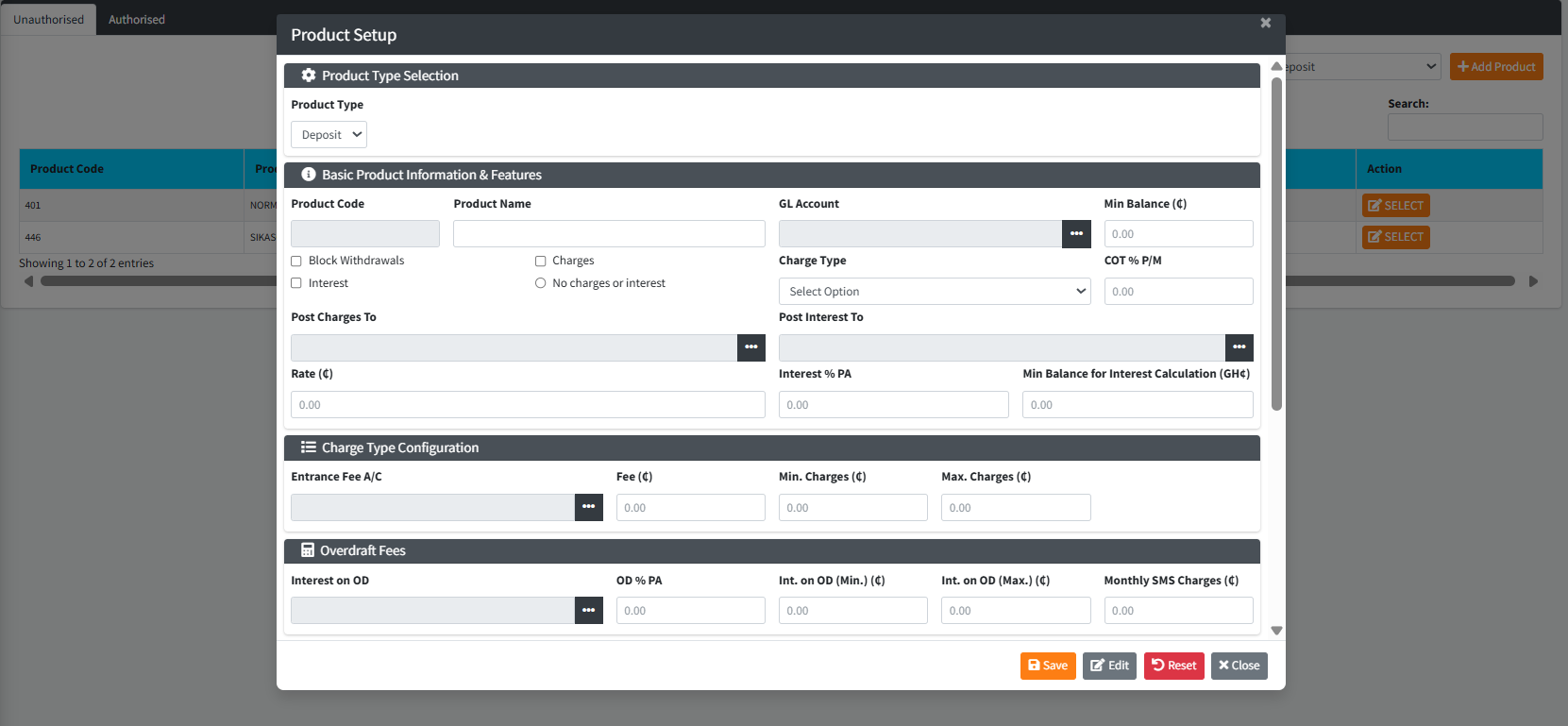
The Product Setup module is a comprehensive administrative tool used to design, configure, and manage the core financial offerings of the institution—specifically, Deposit and Loan products. By dynamically adjusting the configuration interface based on the selected product type, administrators can map specific GL accounts, define granular fee structures, set up withdrawal charge tiers, and configure automated interest parameters.
PURPOSE
- Establish the operational parameters and rules for all customer-facing financial products.
- Ensure strict linkage between specific products (e.g., “Regular Savings,” “Agri-Loan”) and the institution’s General Ledger structure.
- Define automated business rules for account maintenance fees, overdraft charges, and loan processing fees.
- Maintain a secure staging environment (Pending/Unauthorised) preventing new products from going live without dual-administrator authorization.
STEP-BY-STEP GUIDE
Step 1 — Accessing Product Setup
- Navigate to the Admin Setup module and select Product setup via the main application sidebar.
- The primary dashboard displays tabs for Unauthorised (pending authorization) and Authorised (live active products).

- Use the Product Type dropdown in the top right to filter the view between
DepositandLoanproducts.

Step 2 — Initiating a New Product
- Click the orange Add Product button in the top right corner.

- The Product Setup modal will open. First, select the required Product Type (Deposit or Loan) from the top-most card. The form will dynamically restructure based on your selection.

Step 3 — Configuring a DEPOSIT Product
- Basic Information: Enter the
Product Nameand use the dark ellipsis[...]finder button to map it to its parentGL Account. Define theMin Balancerequired for the account. - Features: Check the boxes for
ChargesorInterestdepending on the product’s behavior. If charges apply, select the specificCharge Type(e.g., A/C Maintenance Fees, COT – Monthly). - GL Mapping (Charges/Interest): Use the respective finder buttons to link
Post Charges ToandPost Interest ToGL Accounts. Set your baseRateorInterest % PA. - Charge Configuration: Define the specific
Entrance Fee A/Cand input the monetary limits forMin/Max Charges. - Overdrafts & SMS: Map the
Interest on ODGL account, state the OD percentage, and enter specificMonthly SMS Charges. - Withdrawal Tiers: If utilizing tiered withdrawal fees, check
Charge By Rangeand configure the brackets (e.g., 1st Range: Between X and Y = Charge Z). - Accruals: Finally, navigate to the Accounts and Notes section to map the
Accrued Int. Payable A/c - Dr/CrGL accounts. Click Save.

Step 4 — Configuring a LOAN Product
- Basic Information: Enter the
Product Nameand map the primaryGL Account. Map theInterest on Loan A/Cto capture revenue. - Disbursement & Limits: Define the
Charge on DisbursementGL account, theDisbursement Charges (Rate), and establish theMin/Max Loan Amountparameters. - Interest Rules: Set the
Interest Rate Per Month, select theInterest Type(e.g., Daily, Per Schedule), and map theLoan Fund A/C. - Processing Fees and Insurance: Assign the
Processing Fee A/calong with its rate, minimum, and maximum deductions. Complete any penal charge GL mappings at the bottom of the form. Click Save.
Step 5 — Finalizing the Setup
- Once saved, the new product will appear in the Unauthorised tab.

- A separate administrator must review the entry in the Authorization module to approve the GL mappings and fee structures before the product can be assigned to customers.
KEY NOTES
- Dynamic Interface: The modal extensively uses JavaScript to show or hide relevant fields. For example, selecting “No charges or interest” will automatically disable unnecessary mapping fields.
- Finder Buttons: Do not attempt to manually type GL account codes. Always use the dark
[...]finder buttons to launch the internal GL search modal and ensure absolute database accuracy. - Scroll Handling: Due to the extensive number of financial parameters, the modal is designed to scroll internally while maintaining the header and footer buttons in place.