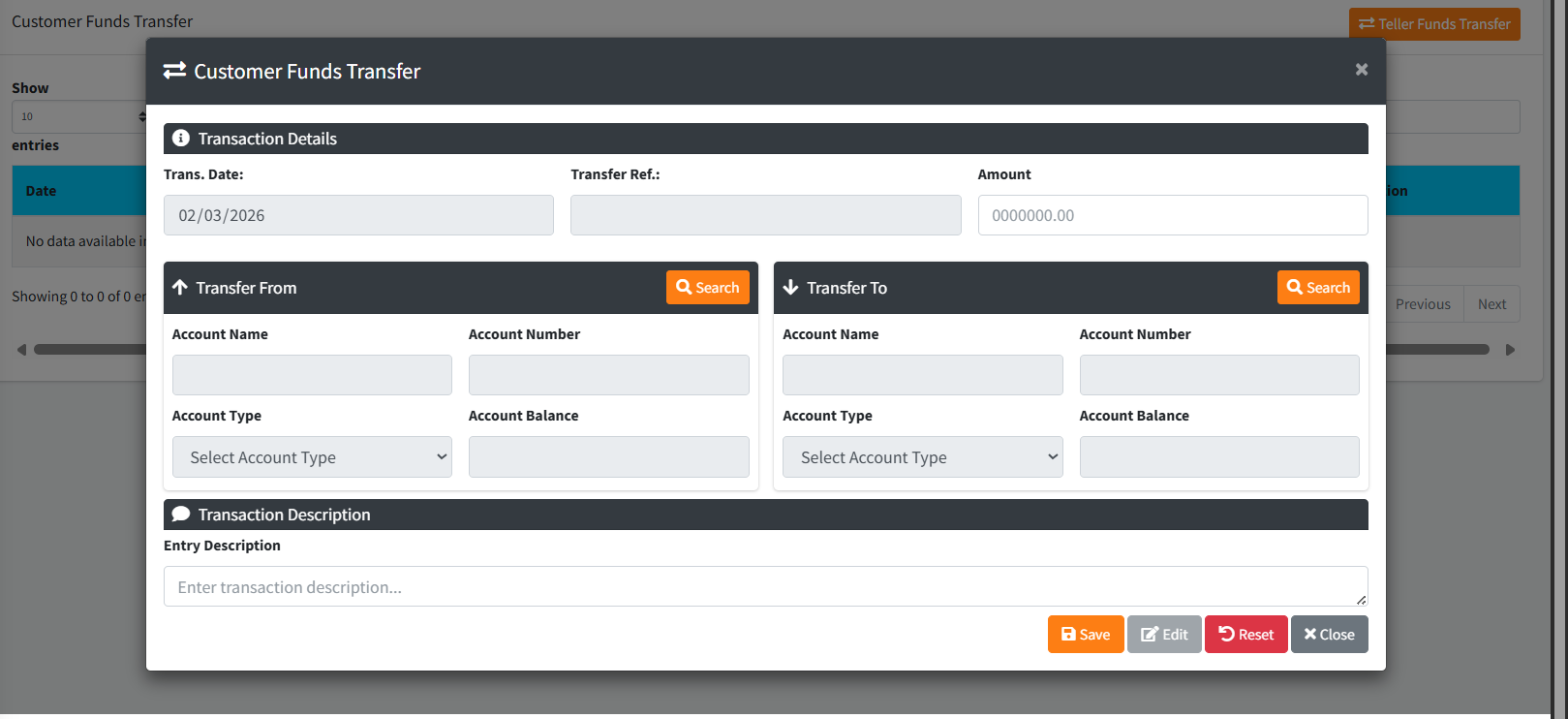
The Teller Funds Transfer page allows a teller to transfer funds between two customer accounts within the same branch. The page provides a record of all transfers made for the day and a form to initiate new transfers. Every transfer requires the teller to complete a Cash Denomination breakdown, ensuring the physical cash handed over matches the transfer amount exactly before the transaction is posted to the system.
PURPOSE
- Enable a teller to move funds from one customer account to another.
- Maintain a visible history of all funds transfers for the current day.
- Enforce a cash denomination verification step for accuracy and accountability.
- Allow tellers to recall and review any previously saved transfer.
- Log every transaction automatically in the system audit trail.
STEP-BY-STEP GUIDE
Step 1 — Navigate to Teller Funds Transfer
Open the Backoffice module. From the left-hand menu, navigate to and click on Teller Funds Transfer.
Step 2 — Open the Transfer Form
Click the Orange “Teller Funds Transfer” button (top right). The Customer Funds Transfer modal opens.

Step 3 — Transaction Details
Trans. Date and Transfer Ref. are auto-filled. Enter the Amount to be transferred.
Step 4 — Select the Transfer From Account
Click Search in the Transfer From panel → search for the customer → click Select. Account Name, Number, Type, and Balance are auto-filled.
Step 5 — Select the Transfer To Account
Click Search in the Transfer To panel → find and select the receiving customer. Their account details auto-fill. (Same-account transfers are blocked.)
Step 6 — Enter a Transaction Description
Type a brief note in the Entry Description field.
Step 7 — Save the Transfer
Click Save. The system validates both accounts and the amount, then opens the Cash Denomination dialog.

Step 8 — Complete the Cash Denomination Breakdown
Enter the unit count for each note and coin denomination (GH₵ 200 down to 1p coins). The system calculates the Denomination Total live. This total must exactly match the Transfer Amount. Once matched, click Save in the denomination dialog.
Step 9 — Transfer is Posted
The debit and credit entries are posted to the respective accounts, an audit trail is logged, and the form resets.
Step 10 — Recalling a Transfer
Click RECALL on any row in the main table to reopen a saved transfer. Fields are locked by default — click Edit to modify, then Save to reprocess. Click Reset to clear without saving.

KEY NOTES
- Transaction Date is locked to the server date.
- Transfer Reference is auto-generated.
- Amount cannot exceed the Transfer From account balance.
- Transfer to the same account is not allowed.
- Denomination total must exactly match the transfer amount (tolerance: 0.01).
- All transfers are audit-trailed automatically.