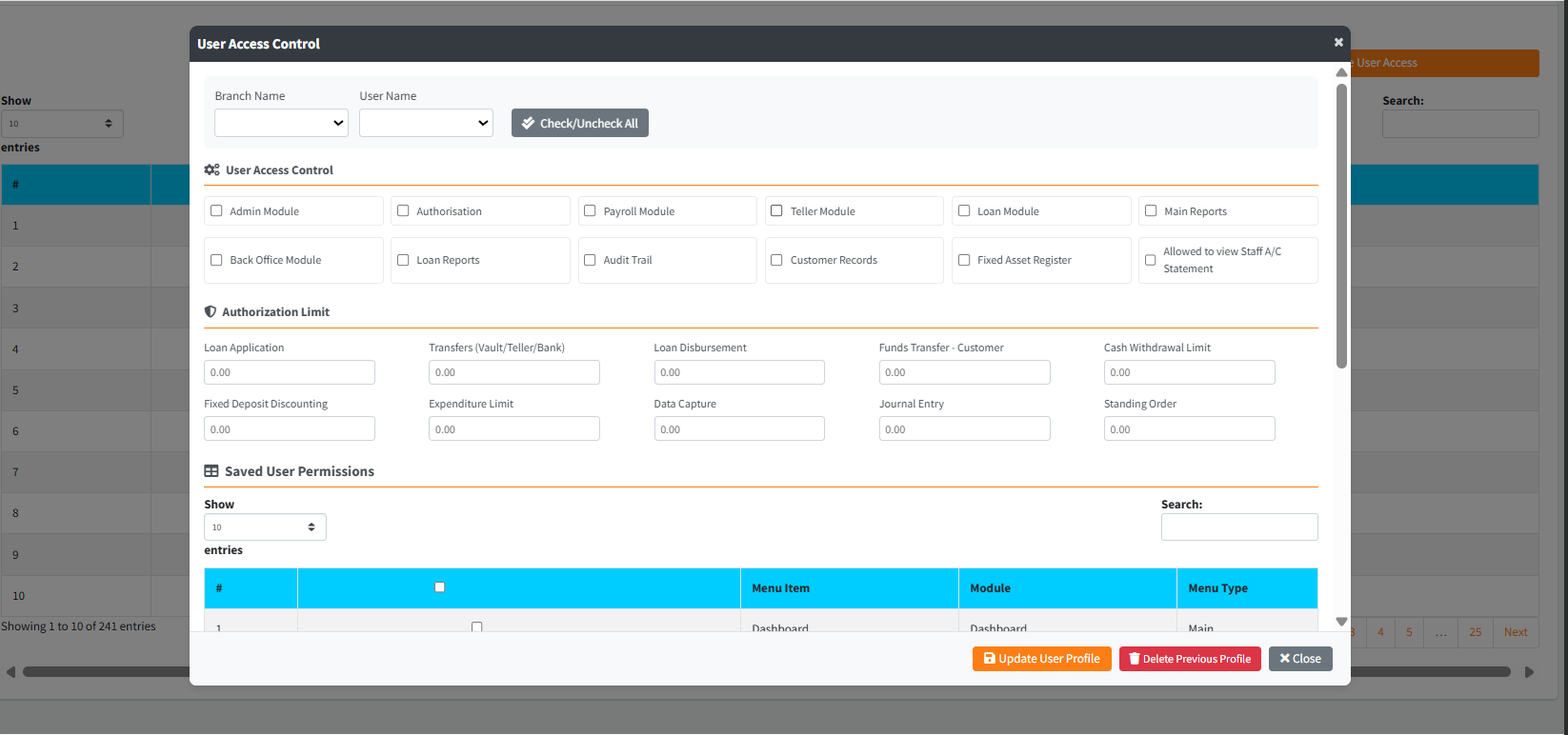
The User Profile module governs granular system access and personal authorization limits for all staff members across Sikasoft. Unlike the “User Account” module (which handles basic demographics and global roles), this module assigns precise, menu-level permissions and exact financial authorization tier limits. Administrators use this interface to sculpt an employee’s exact access boundaries and print detailed Access Control Audit Reports.
PURPOSE
- Define exactly which application tabs, menus, and sub-menus a particular user can view or interact with.
- Enforce strict financial limits for operations such as Cash Withdrawals, Vault Transfers, and Loan Disbursements.
- Assign access via high-level module checkboxes (e.g., HR + Payroll, Fixed Asset Register) or granular table selections.
- Generate and print formatted HTML Audit Reports detailing a specific user’s complete permission matrix.
STEP-BY-STEP GUIDE
Step 1 — Accessing the Main Dashboard & Reviewing Global Access
- Navigate to the Admin Setup module and select User Profile from the sidebar.
- The initial screen presents a “Global Modules” view, allowing for rapid, high-level access allocation.
- Select a Branch Name and then the specific User Name from the top dropdowns. Selecting a user will immediately query the database and populate their currently assigned permissions in the global list.
- To view a summarized breakdown of their access, click the grey Print Report button to generate a detailed, printable HTML audit sheet.

Step 2 — Configuring Limits and Granular Menus
- To modify or set up a new permissions structure, click the orange Configure New User Profile button.

- The large User Access Control list Modal will appear.

Step 3 — Setting Authorization Limits The top half of the modal controls the financial ceilings for the assigned user.
- Re-select the Branch and User Name at the top of the modal.
- In the Authorization Limit section, input the maximum monetary value this user is allowed to process un-authorized for:
- Loan Application & Disbursement
- Transfers (Vault/Teller/Bank)
- Funds Transfer (Customer)
- Cash Withdrawal Limit
- Fixed Deposit Discounting & Expenditure
- Journal Entries & Data Capture
- To grant the user the ability to view other User Accounts, check the Allowed To View User Account details toggle at the top right.

Step 4 — Setting Granular Menu Permissions The bottom half of the modal lists every discrete application menu within Sikasoft.
- Scroll through the Saved User Permissions table.
- Check the box next to specific Menu Items (e.g., Cash Deposit, Admin Setup) to grant the user access to that exact screen.
- Use the Check/Uncheck All toggle in the table header to rapidly lock or unlock all menu items.

Step 5 — Saving the Profile
- Once both the financial limits and the menu checkboxes are perfectly configured, click the primary orange Update User Profile button at the footer of the modal.
- The system will securely save both the
Auth Limitsand theMenu Permissionsto the database, instantly updating the user’s operational boundaries on their next login session.

KEY NOTES
- Real-Time Module Toggling: On the main screen, toggling a master module (e.g.,
Teller) automatically selects or deselects all underlying sub-menus assigned to that module within the data tables. - Audit Reporting: The Print Report button intelligently disables itself until a valid customer is selected. The generated report includes time-stamps and branch mapping, ensuring regulatory compliance.
- Safety Restriction: The system dynamically prevents an administrator from arbitrarily assigning full system permissions to themselves (self-elevation). Attempting to do so triggers an alert block.