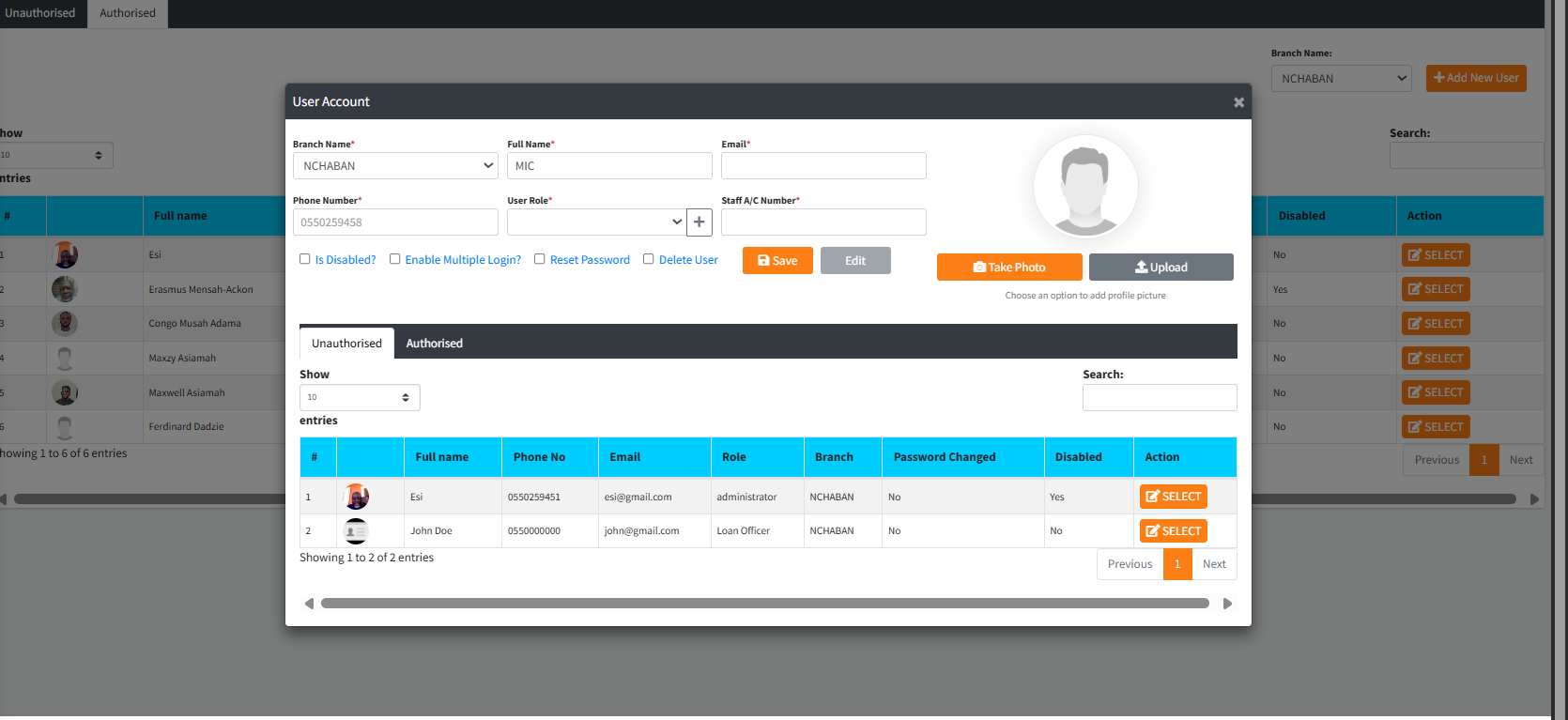
The User Account module provides a centralized interface for creating, modifying, and overseeing staff access to the Sikasoft application. System Administrators use this module to deploy new employee profiles, assign specific operational roles, capture professional profile images (via webcam or computer upload), and enforce security measures like password resets or account disablement.
PURPOSE
- Provision system access for new branch staff and central office personnel.
- Define explicit User Roles (e.g., Teller, Branch Manager, Loan Officer) to enforce precise permission boundaries.
- Facilitate hardware-integrated profile imaging, allowing administrators to capture live pictures using device cameras or upload local files.
- Enable high-level security overrides (enabling multiple logins, resetting passwords, disabling/deleting compromised accounts).
- Enforce the dual-control structure via the standard Unauthorised/Authorised tab system.
STEP-BY-STEP GUIDE
Step 1 — Accessing the Dashboard
- Navigate to the Admin Setup module and select User Account from the admin sidebar menu.
- The initial view provides two main tabs: Unauthorised (pending creation/modification) and Authorised (active system users).

- You can filter the visible user base by selecting a specific branch from the
Branch Namedropdown at the top right.

Step 2 — Creating a New User
- Click the orange Add New User button located at the top right of the dashboard.

- The large User Account modal will launch. The modal features two tabs at the bottom reflecting existing Unauthorised and Authorised users for quick selection and modification without leaving the window.

Step 3 — Completing the Personal & Role Data Fill out the required demographic and system assignment fields:
- Branch Name: Select the operational hub the staff member will be assigned to.
- Full Name & Email: Enter the employee’s official name and professional email address.
- Phone Number: Enter a valid 10-digit phone number (e.g., 0550259458).
- User Role: Select the predefined role from the dropdown. (Note: If a specialized role is missing, administrators can click the
+button beside the dropdown to open the Manage User Roles modal, where new roles can be defined and saved dynamically). - Staff A/C Number: Enter the employee’s designated operational ID/Account number.
Step 4 — Capturing the Profile Picture To assign an avatar/picture to the user, direct your attention to the right side of the modal.
- Click Upload to select an image (
.jpg,.png) from your local device storage.

- Alternatively, click Take Photo to launch the integrated camera module.
- You may be prompted by your browser to allow camera access.
- Click Capture once the subject is in frame.
- Technical Note: The system will automatically crop and scale the image to a perfectly optimized 250×250 square.

Step 5 — Applying Security Overrides & Saving
- Just above the action buttons, note the four security checkboxes:
- Is Disabled?: Suspends all system access immediately.
- Enable Multiple Login?: Allows the user to bypass the active-session limitation.
- Reset Password: Forces a password reset parameter upon next login attempt.
- Delete User: Flags the account for permanent system removal (requires Authorization).
- With the form complete, click the blue Save button.

Step 6 — Authorizing the Account
- As with all critical master data, the newly created (or modified) user is placed in the Unauthorised tab.
- A separate supervisor/administrator must use the final Authorization module to approve the new account, at which point the user can log into the live system.

KEY NOTES
- Real-Time Validation: The form aggressively validates email syntax and phone number lengths (preventing save errors).
- Embedded Searching: Inside the “Add New User” modal, the bottom half features data tables. This allows administrators to quickly search and select (recall) an existing account for editing (by clicking the blue
SELECTbutton) without exiting the creation workflow. - Image Compatibility: The image handler is responsive to both desktop webcams and mobile environment cameras, automatically falling back to secure file upload streams if direct video stream permissions are denied.