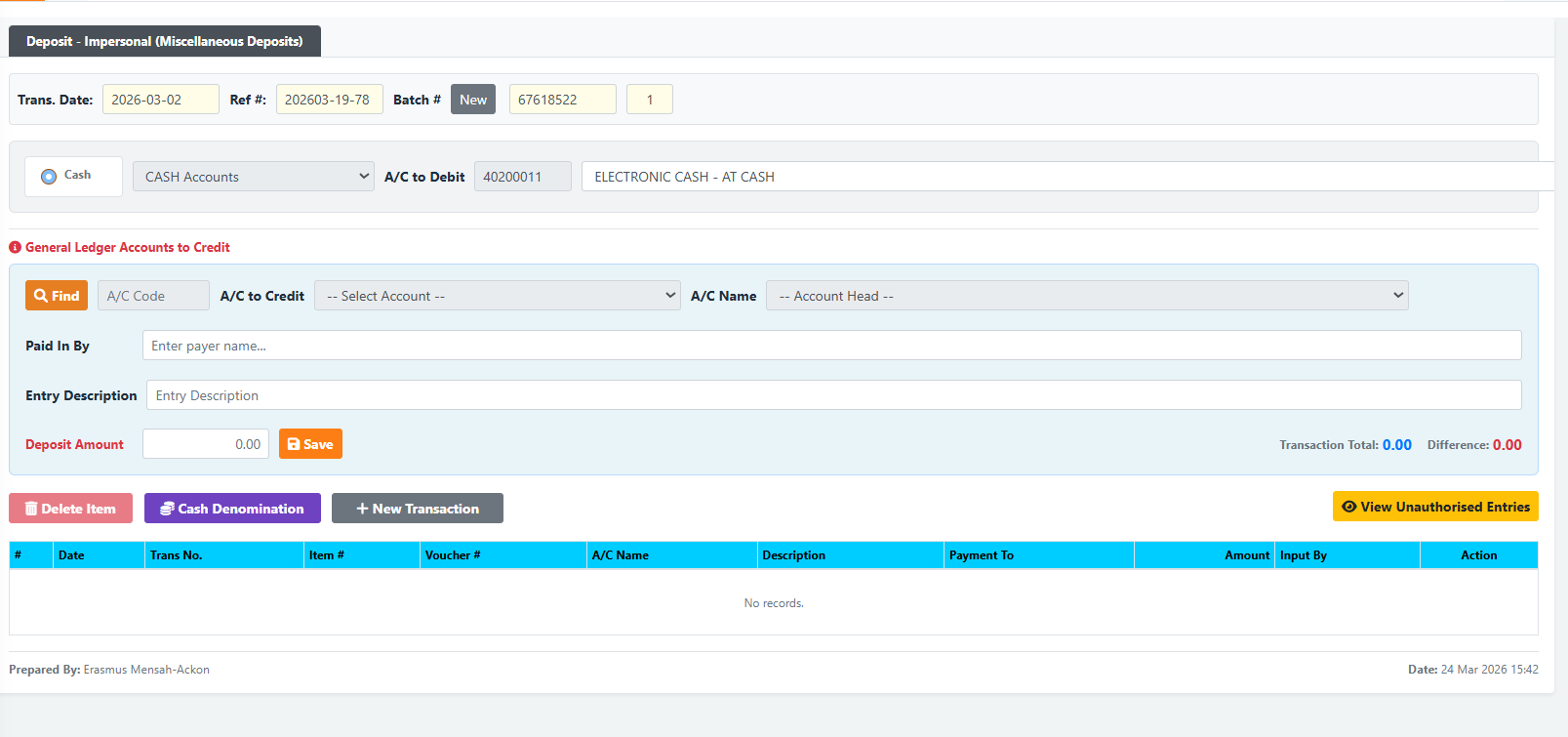
The Cash Deposit – Impersonal page is used by tellers and back-office staff to record incoming funds that do not go directly into a regular customer’s savings or current account. This page is used to debit a Cash Account and credit a specific General Ledger (GL) Account (e.g., for application fees, stationary sales, external income, or other miscellaneous branch revenue).
PURPOSE
- To record incoming administrative or miscellaneous funds received at the branch.
- To debit the teller’s Cash Account to reflect physical cash received.
- To credit a specific General Ledger (GL) Account acting as the revenue or holding account.
- To securely complete a required Cash Denomination breakdown to verify physical funds.
- To manage and review unauthorised or pending impersonal transactions for the day.
STEP-BY-STEP GUIDE
Step 1 — Navigate to Cash Deposits-ImpersonalÂ
Open theBackoffice module and select the Cash Deposit – Impersonal (Miscellaneous Deposits) menu option.
Step 2 — Verify Transaction detailsÂ
At the top of the form, the system automatically assigns the following:
- Trans. Date: The current server date.
- Ref # & Batch #: The system auto-generates references for tracking the transaction.
Step 3 — Set the Account to DebitÂ
In the first main row:
- Ensure the “Cash” radio button is selected.
- The dropdown next to it will default to your CASH Accounts.
- The A/C to Debit will automatically populate with your specific Teller Cash Account (e.g.,
ELECTRONIC CASH - AT CASH). This tells the system that your tellering till is receiving the physical money.
Step 4 — Set the GL Account to CreditÂ
Under the red “General Ledger Accounts to Credit” section:
- Use the Find button or directly use the dropdowns to locate the correct GL Account.
- Select the A/C to Credit or A/C Name (e.g., “Stationary Sales” or “Application Fees”). The system will populate the corresponding GL account code.
Step 5 — Enter Payer & Description details
- Paid In By: Type the name of the individual depositing the money (e.g., “Kwame Mensah” or “Walk-in Customer”).
- Entry Description: Type a clear, brief reason for the deposit (e.g., “Payment for 2 passbooks”).
Step 6 — Enter Amount and Save
- In the Deposit Amount field, enter the exact amount of cash received.
- Click the orange Save button. (The system will update the “Transaction Total” on the right side of the screen).

Step 7 — Complete Cash DenominationÂ
Before the transaction is finalized, you must verify the physical cash:
- Click the purple Cash Denomination button below the Save area.

- A window will open where you must enter the exact count of bank notes and coins received.
- The total from the denomination count must exactly match the deposit amount entered earlier. Save the denomination.

Step 8 — Review and FinalizeÂ
Once saved, the transaction drops into the table at the bottom of the screen showing: Date, Trans No., A/C Name, Description, Amount, and the Input By user.
- Click + New Transaction if you need to process another payment.


- Click View Unauthorised Entries (yellow button) to review all pending deposits that require authorization by a supervisor.


KEY NOTES
- Debit/Credit Logic: This screen debits your Teller Cash GL (increasing physical cash on hand) and credits an Income or Liability GL.
- Denomination is Mandatory: You must always complete the Cash Denomination step. The deposit cannot be processed if the physical cash breakdown does not equal the entered amount.
- Unauthorised Entries: Depending on your branch’s control setup, these entries may drop into an “Unauthorised” state, requiring a supervisor to approve them before the GL accounts are officially hit.