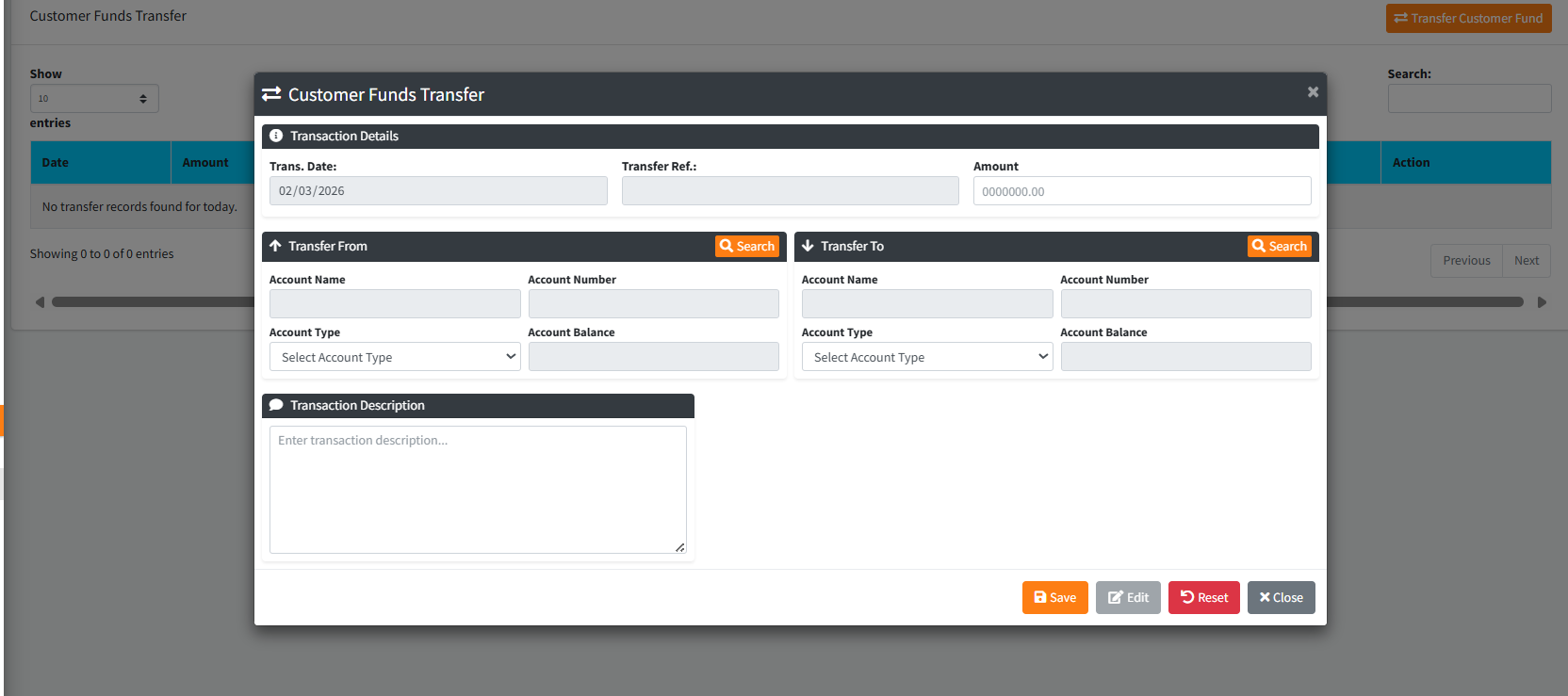
The Customer Funds Transfer page enables a teller or back-office officer to transfer funds directly between two customer accounts within the same branch. The page displays a history of all transfers made today and provides a modal form to initiate a new transfer. Unlike the Teller Funds Transfer, this page transfers funds between customer savings/current accounts — not GL cash accounts — and includes product type selection for both the sending and receiving accounts.
PURPOSE
- Allow a teller to move funds between two customer accounts (e.g. savings to current).
- Display a daily record of all customer-to-customer transfers (Dr Customer, Cr Customer, amounts, products).
- Allow the user to select account product types (e.g. Savings, Current) for both the debit and credit side.
- Enable recall and editing of previously saved transfers for the day.
- Log an entry description alongside each transfer for record-keeping.
STEP-BY-STEP GUIDE
Step 1 — Navigate to Customer Funds Transfer
Open the Backoffice module. From the left-hand menu, navigate to and click on Customer Funds Transfer. The page loads and automatically displays today’s transfer records in the table.
Step 2 — Open the Transfer Form
Click the blue “Transfer Customer Fund” button at the top right of the page. The Customer Funds Transfer modal form opens.

Step 3 — Review Transaction Details
At the top of the form, the following fields are auto-set:
- Trans. Date — Current server date (read-only)
- Transfer Ref. — Auto-generated on save (read-only)
- Amount — Enter the amount to be transferred
Step 4 — Select the Transfer From Account
In the Transfer From panel (left side):
- Click the Search button
- Type the customer’s name, account number, or phone in the search box
- Click SELECT on the correct customer row
Once selected, the following auto-populate:
- Account Name, Account Number, Account Balance
- Account Type dropdown — populated with the customer’s available non-loan products (e.g. Savings, Current). Select the appropriate product type. The Account Number and Balance update automatically when the product type is changed.
Step 5 — Select the Transfer To Account
In the Transfer To panel (right side):
- Click the Search button
- Search and select the receiving customer
- Select the appropriate Account Type from the dropdown
Note: Transfers to the same account are not permitted. The system will block and show a warning.
Step 6 — Enter a Transaction Description
In the Transaction Description box at the bottom, type a brief note about the purpose of the transfer (e.g. “Customer request — Savings to Current transfer”).
Step 7 — Save the Transfer
Click the Save button. The system validates:
- Amount is entered and greater than zero
- Transfer From and Transfer To accounts are selected and different
- The amount does not exceed the Transfer From account balance
- A description has been provided
If all validations pass, a confirmation prompt appears. Click Confirm to post the transfer.

On success: the debit entry is posted to the Transfer From account and the credit entry to the Transfer To account. The form resets and the main table refreshes.
Step 8 — Recall a Transfer
To review a previously saved transfer:
- Locate it in the main table (columns: Date, Amount, Dr Customer, Cr Customer, Dr Product, Cr Product)
- Click the SELECT button in the Action column
- The form opens pre-filled with all saved details — fields are locked by default
- Click Edit to unlock and modify, then Save to re-post
- Click Reset to clear the form without saving

KEY NOTES
- Transaction Date is locked to the server date.
- Transfer Reference is auto-generated — do not enter it manually.
- The Account Type dropdown loads the customer’s available non-loan products after a customer is selected.
- Changing the Account Type automatically updates the Account Number and Balance.
- Transfer amount cannot exceed the debit account’s available balance.
- Transfers between the same account are blocked.
- A description is required before the transfer can be saved.