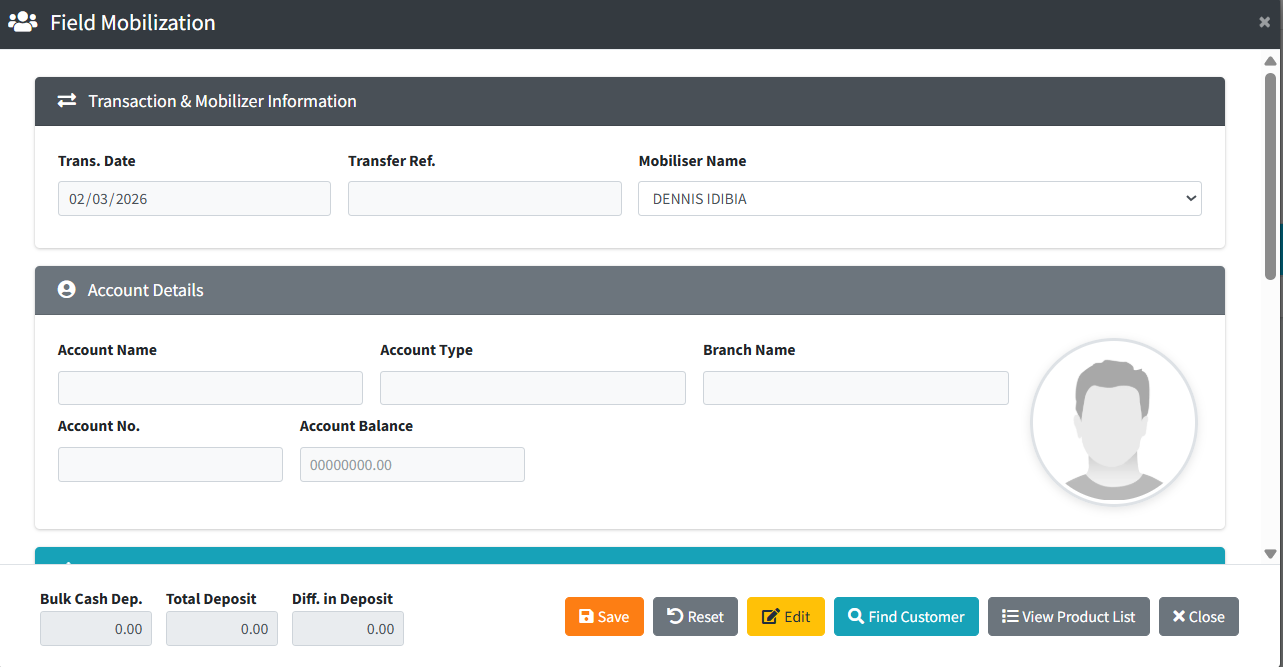
The Field Mobilization page is the entry point used by field officers (mobilisers) to record cash deposits collected from customers directly in the field — outside of a branch. It provides a searchable customer directory and a dedicated deposit form to capture all relevant transaction and depositor details before the transaction is reviewed and authorised by a back-office supervisor.
PURPOSE
The purpose of this page is to:
Allow field officers to search for and identify customers by account number, name, or phone number.
Record cash deposits collected from customers in the field, including full depositor details, deposit type, and amount.
Queue transactions for back-office authorisation before they are posted to customer accounts.
Maintain a clear table of all pending field deposits for the current date per mobiliser.
Support bulk data upload from Excel for high-volume deposit collection scenarios.
STEP-BY-STEP GUIDE
Step 1 — Navigate to Field Mobilization
Open the Backoffice module. From the left-hand menu, navigate to and click on Field Mobilization. The main page will load, displaying a customer search bar and a table ready to show results.
Step 2 — Search for a Customer
In the Search Customer box, type the customer’s account number, name, or phone number. The table filters live to show matching results. Click the Select button on the correct row.
Step 3 — Open the Deposit Form
To record a new deposit, click the orange “Add Field Mobilization” button (top right). Or, clicking Select from the search table opens the form pre-filled with that customer’s account info.
If Deposit Type = Self, the system auto-fills ID, phone, and address from the customer record. For Third Party, these must be entered manually.
Step 5 — Review the Deposits Table
Below the form, a table shows all deposits already recorded for this mobiliser today (Account No, Account Name, Account Type, Deposit By, Amount). Click SELECT on any row to recall and review it.
Step 6 — Save the Deposit
Click Save → a confirmation dialog appears → click Confirm. The deposit is saved as pending and awaits back-office authorisation. Click Reset to clear the form without saving.
Step 7 — Upload Data from Excel (Optional)
Click “Upload Data from Excel” to bulk-import multiple transactions from a spreadsheet. Accept the preview, then upload your file in the Data Upload dialog.
Step 8 — View Product List (Optional)
Click “View Product List” to see all account product codes and types for reference.
Step 9 — Close the Form
Click Close or the × icon to dismiss the form and return to the customer search table.
KEY NOTES
Transaction Date is locked to the server date — it cannot be changed on this page.
The Transfer Reference is auto-generated — do not enter it manually.
Third Party deposits require full depositor ID, phone, and address.
Saves are pending only — a supervisor must authorise them before accounts are updated.
The form shows Bulk Cash Dep., Total Deposit, and Difference in Deposit for cash reconciliation.